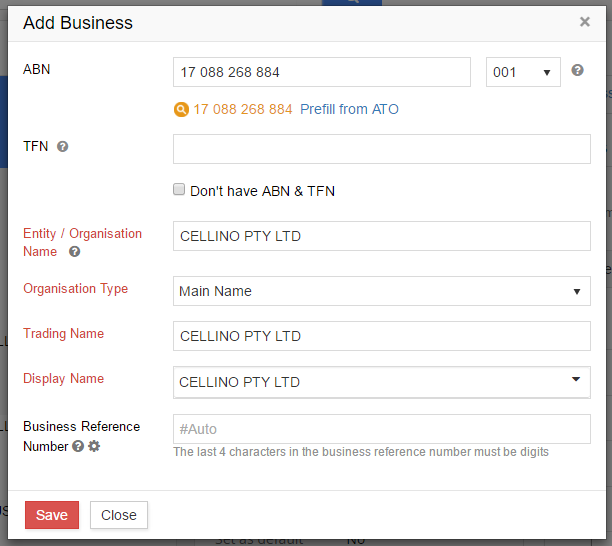
Adding business account one at the time by clicking on to populate and access the New business profile template User Allocation
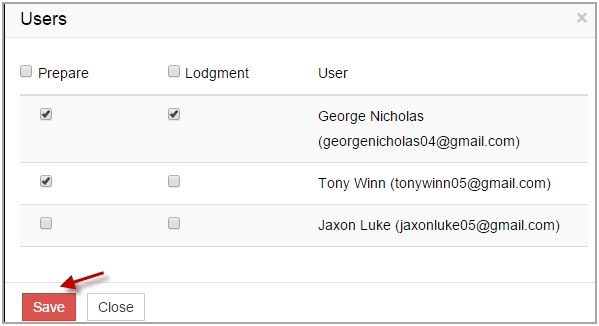
If you have additional and authorised user/s on your account and want to allocate the business entities to them to Prepare and or Lodge the tax return.
As GovReports has inbuilt ABN Look Up and cross-checks the validity of the ABN when adding an entity into GovReports, if an incorrect ABN is entered, you will be prompted that the ABN is invalid and or not matching with the trading name or name of the organisation. In which case you will not be able to proceed further or be able to prepare reports and lodge to ATO. This is incorporated to minimise error when lodging by the tax practitioner and for ATO in receiving the correct information for the right tax payer.
If the business entity does not have an ABN or a valid TFN, they may have the WPN to enter the system for validation with ATO Action Tab
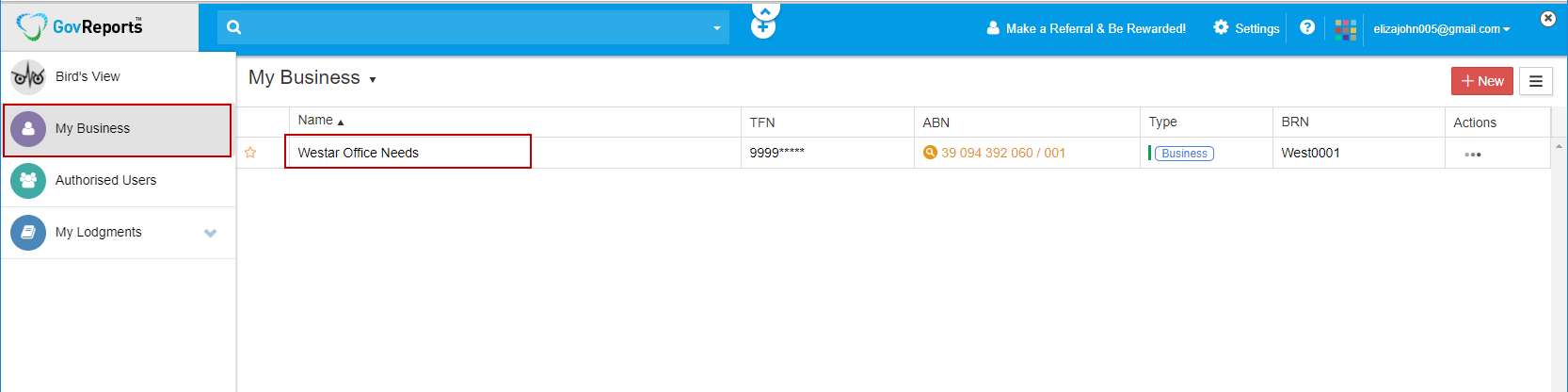
To export data for business entity, Go to My Business and click action and select either Export to CSV or Export to XML.
1. Export to XML – Allows exporting business data in XML format.
2. Export to CSV – Allows exporting business data in CSV format.
Business Profile
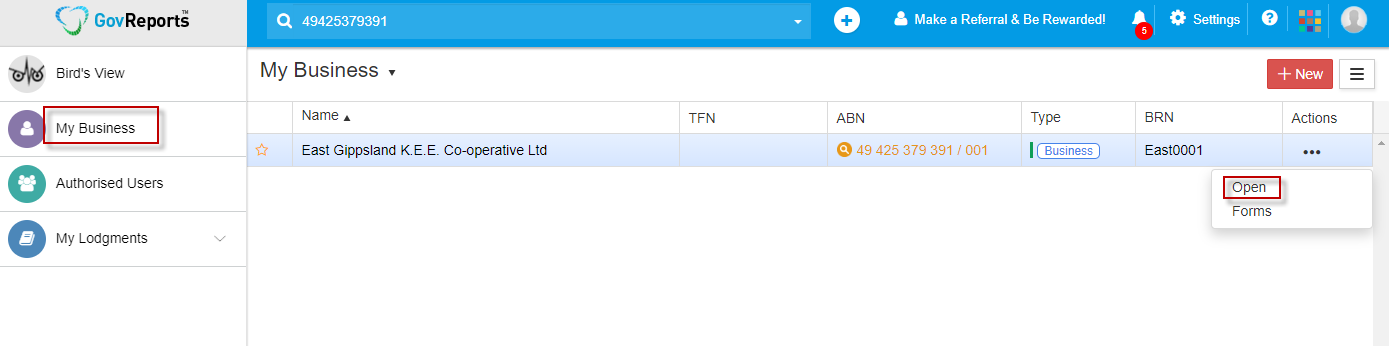
To access to business profile page, there are 3 options:
1. Type the business name/ABN on the Search Field from Dashboard, then click on their name
2. Go to My Business and click on their name
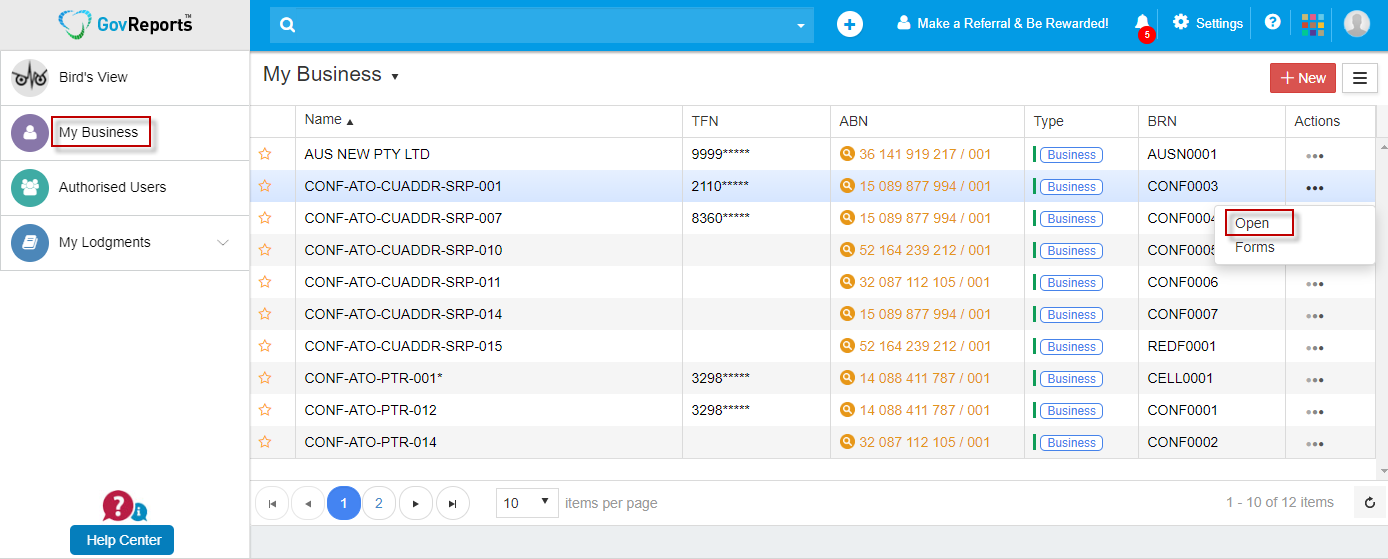
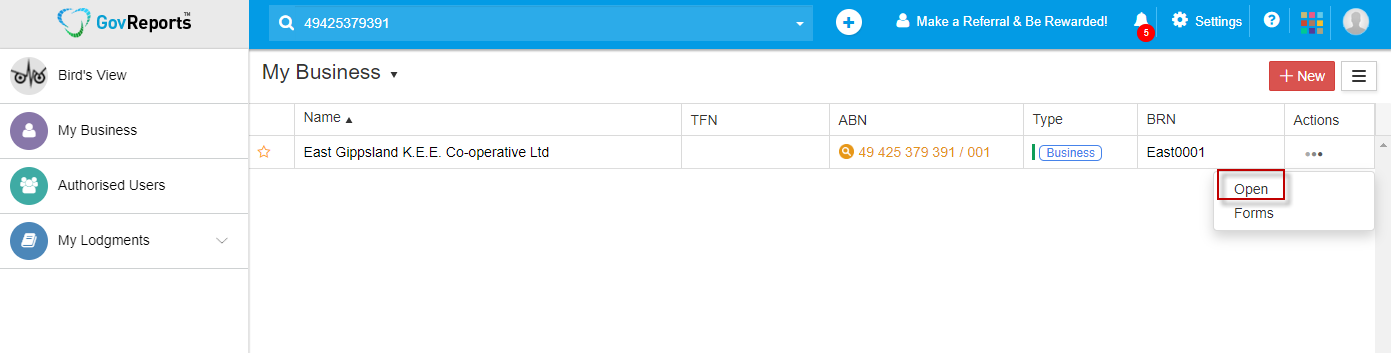
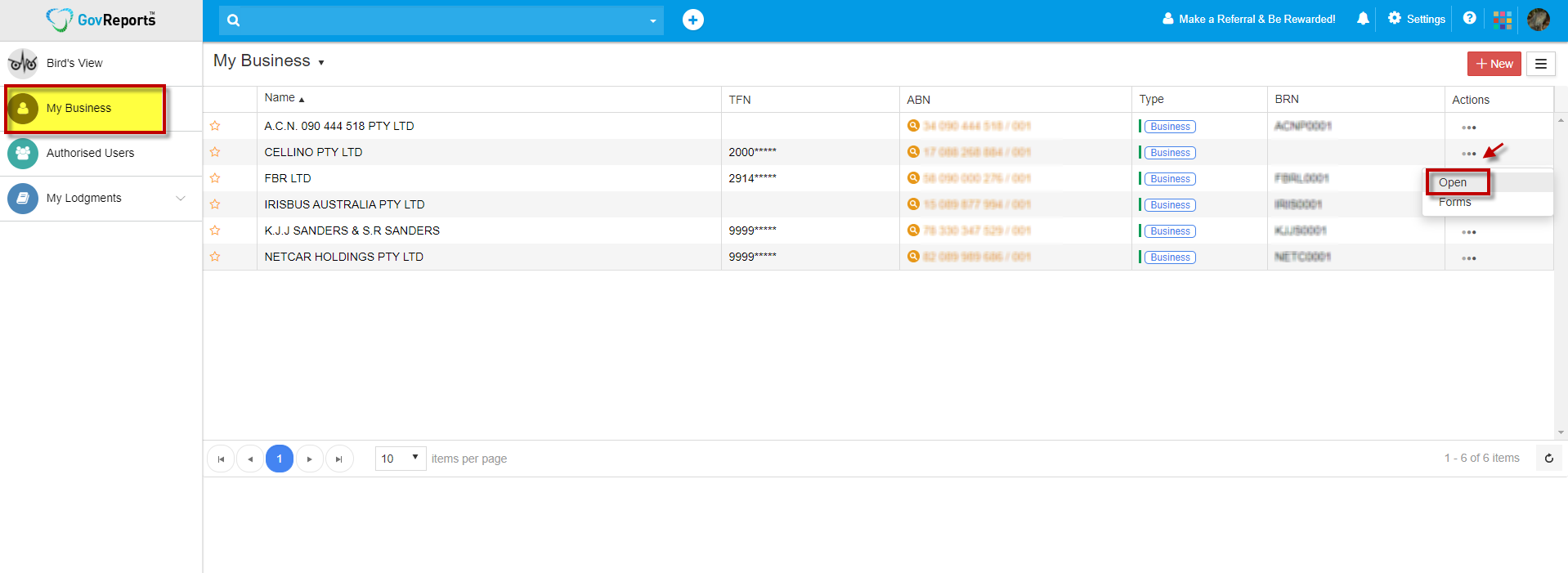
3. Go to My Business and click on action and select Open
Edit business entity Profile has the following features:
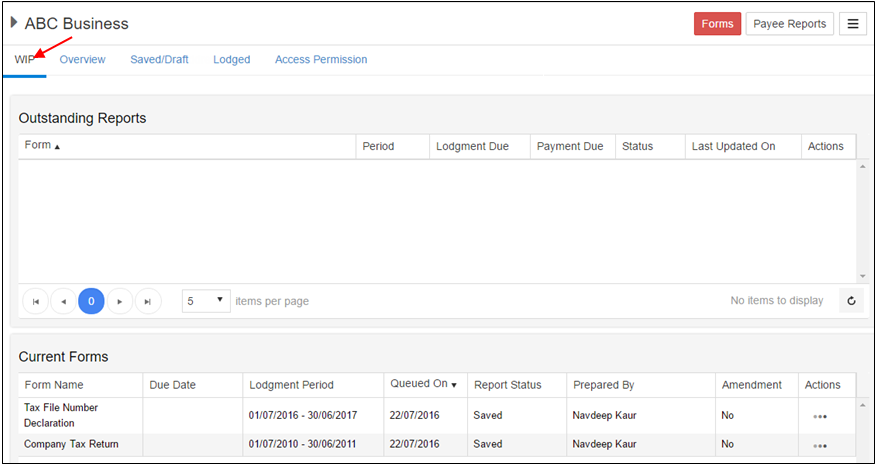
• WIP
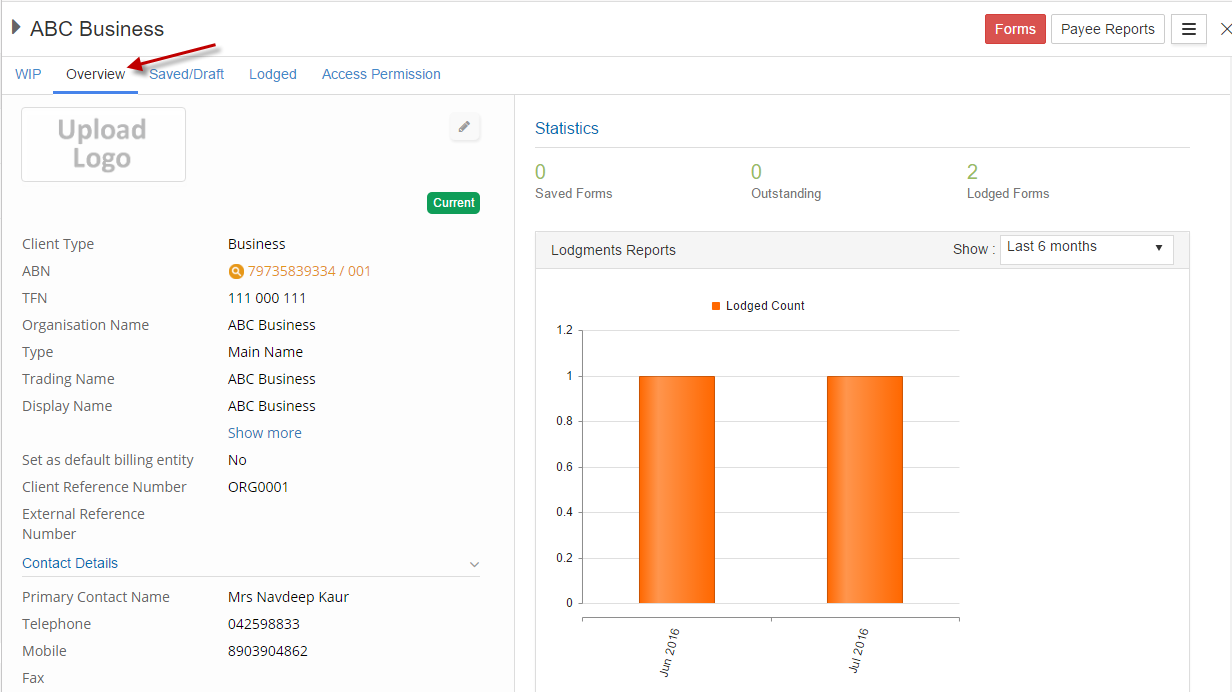
• Overview
• Saved/Draft
• Lodged
• Access Permission
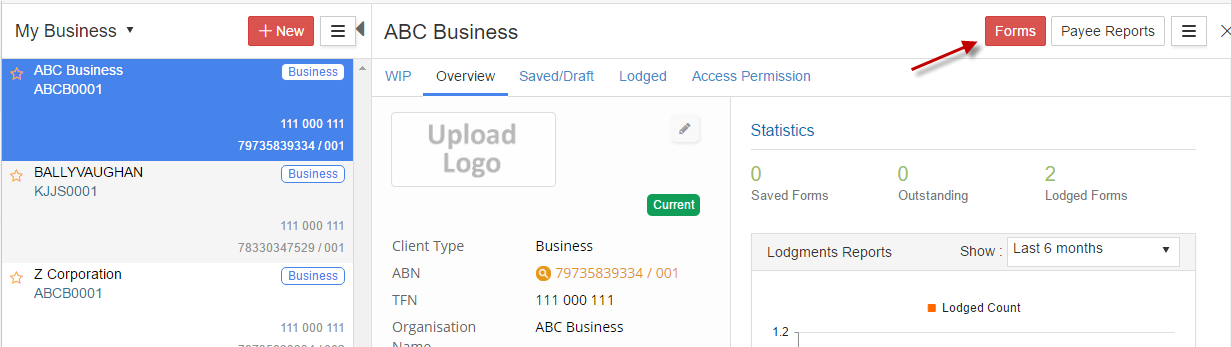
• Forms
• Edit
• Payee Reports
• Manage Users
• Action Tab
Manage Users
Outstanding Reports
M2M Credentials
ATO Nomination
Archive
Delete
WIP
This is the work in progress for this specific business entity.
Overview
Overview of the business is the overall profile of the business entity as per template. Shows current contact details of the business and enable for correction to be made if applicable.
Saved/Draft
Shows the list of all reports prepared and saved for this specific business entity only.
Lodged
Shows the list of all lodged reports for this specific business entity only.
Access Permission
Shows the list of all authorised users assigned to specific business entity and their role in the GovReports reporting.
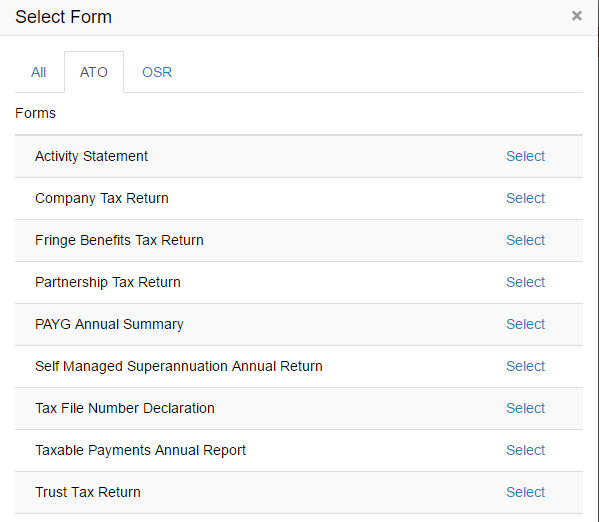
Forms
Lists all subscribed and authorised accessible reporting forms
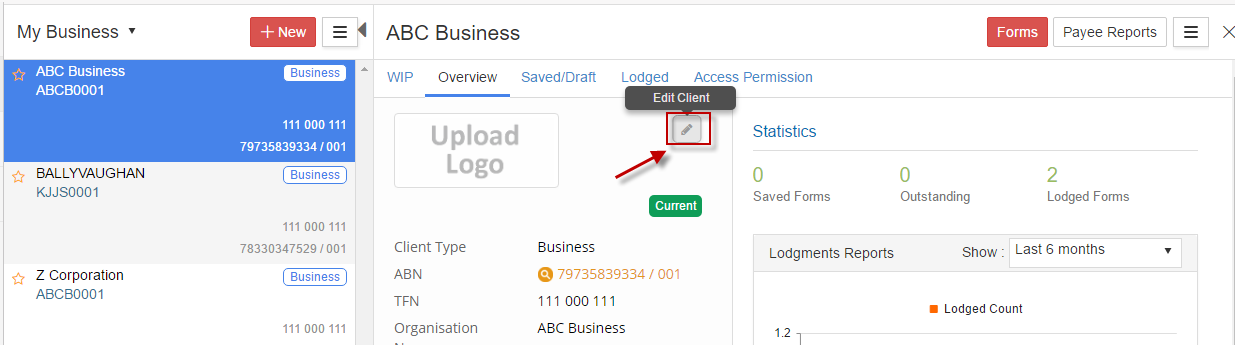
Edit
Command function to enable authorised user to make changes to the particular business entity and or contact details
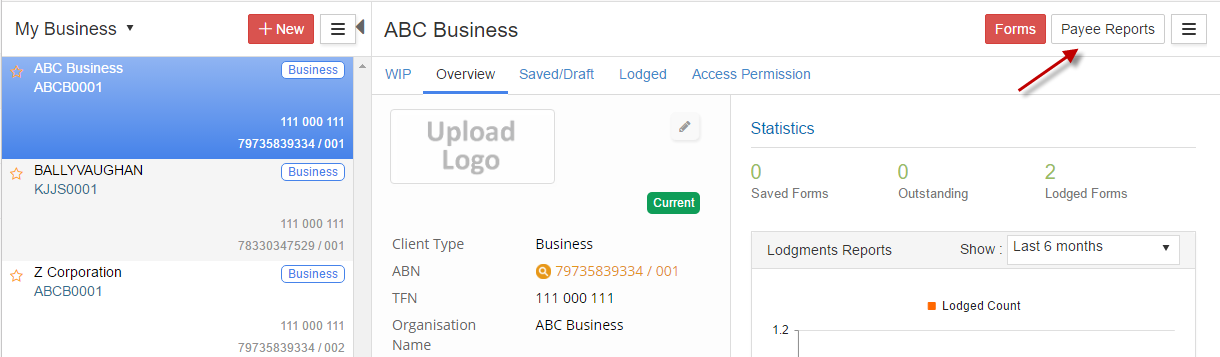
Employee/Payee Reports
If you have prepared and lodged PAYG Payment Summaries, TFND and TPAR for particular business entity by data entry or via CSV file upload, the details of their employees will be recorded here for easy viewing access, printing, email and or download.
M2M Credentials
Machine credentials allow digital service providers (DSP), businesses and tax professionals to interact with ATO online services
through their Standard Business Reporting (SBR) enabled software. A machine credential – equivalent to a Device AUSkey credential.
It is mainly used for lodging OSR forms.
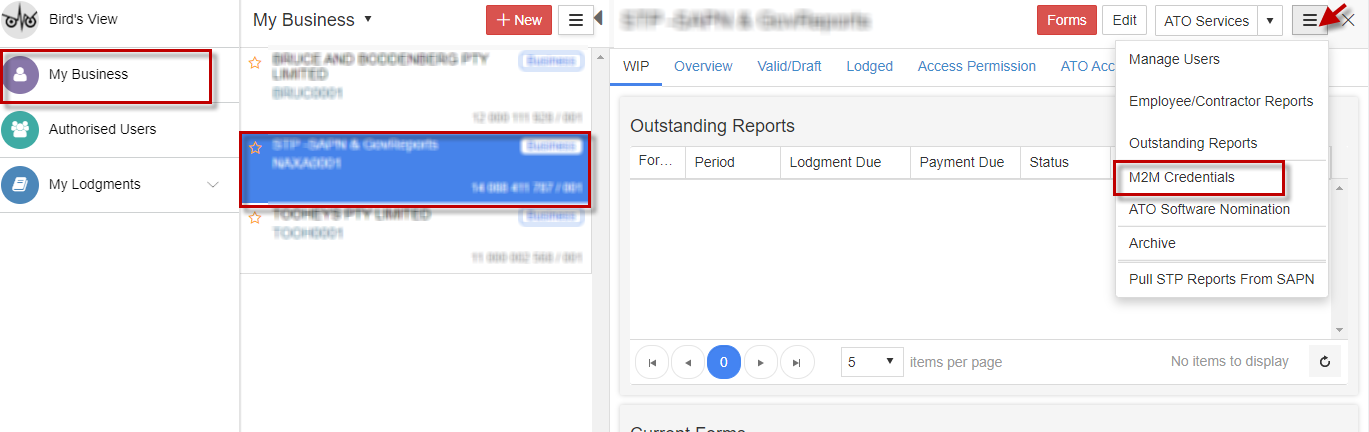
To maintain the M2M credentials, go to My Business -> open the business name. On the top right corner, click on “More” option (three horizontal lines)
and select “M2M credentials”
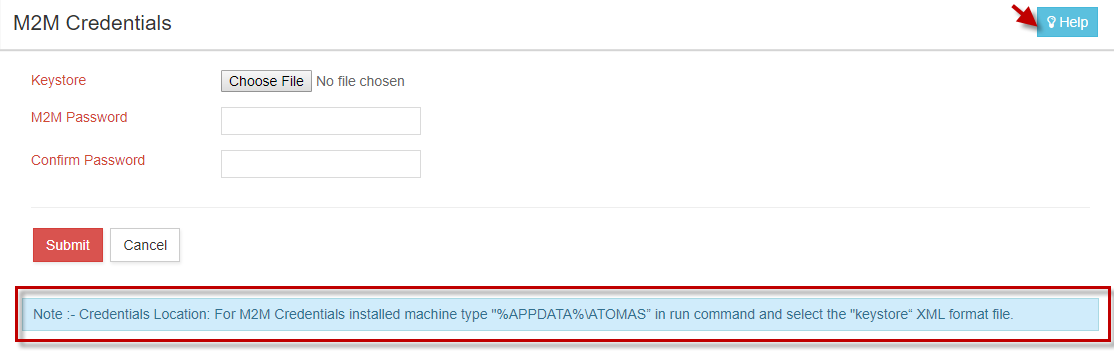
Upload the file and enter the credentials. For more details on how to upload, click on “Help” on the top right corner.
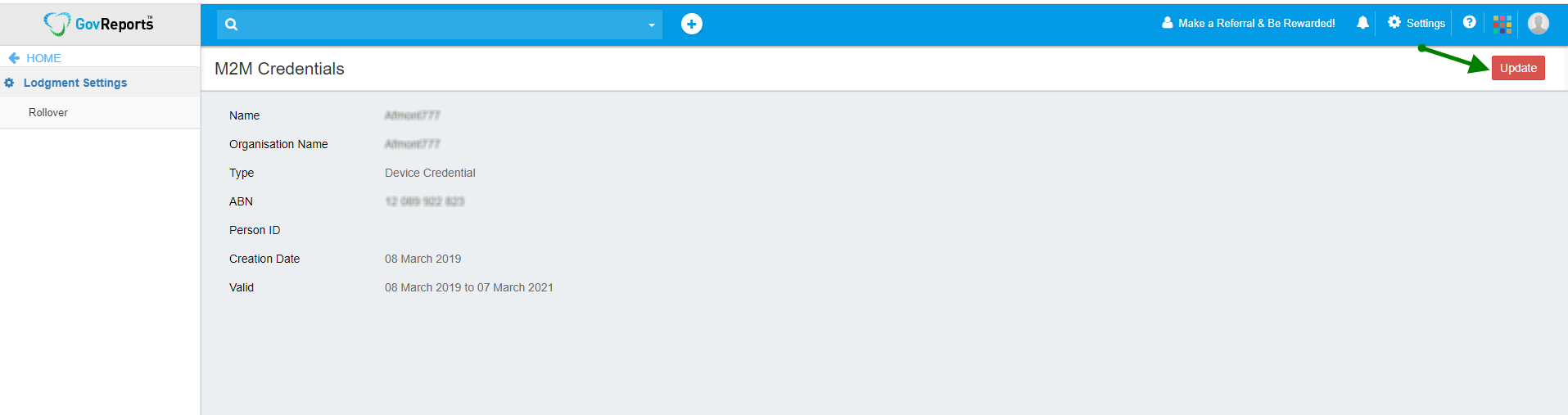
Update M2M credentials: If M2M credential is expired, you an update it by clicking on “Update”
ATO Services
ATO Services provides the ability to view ATO accounts and its related transactions. It also provides an option to maintain relationships and demographic information. The business users can make use of the following services.
Businesses can make use of the following services and report changes to ATO.
ATO Accounts
Business Address
Authorised Contacts
Associates
Financial Institution Details
It is available to Businesses and Business Intermediaries.
1. ATO Accounts:
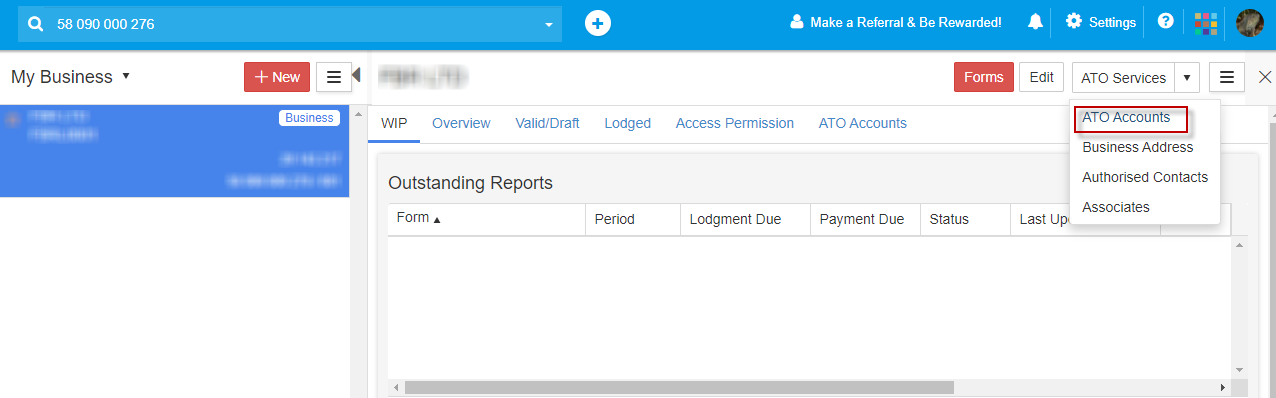
For a business, ATO accounts can be viewed from My Business. Choose a business, select ATO Accounts” under the “ ATO services” button.
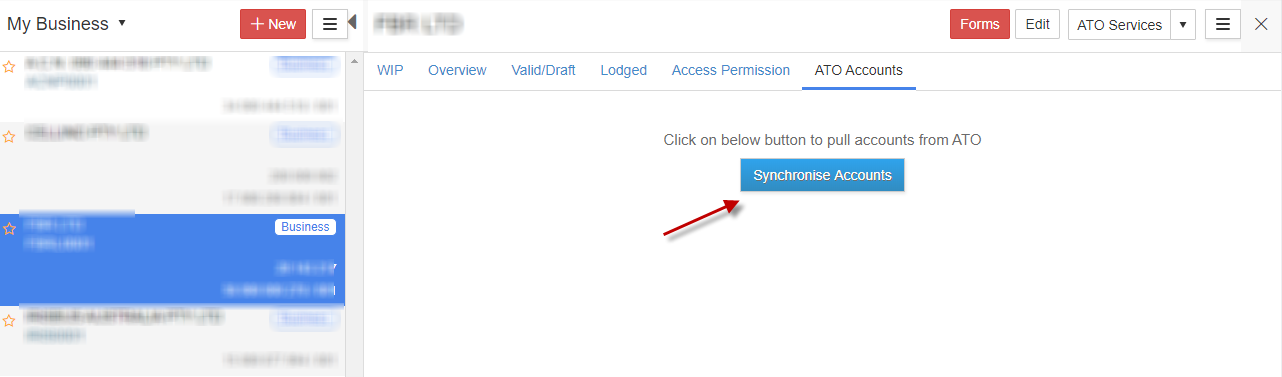
Click on “Synchronise Accounts”.
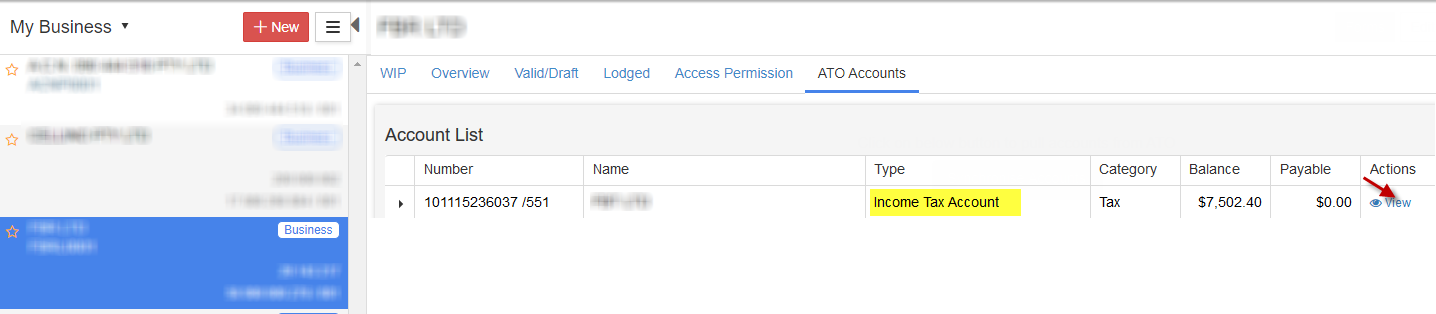
It will show the list of ATO account information available including the balance and payable amount..In this case, the account type available for this business is Income Tax Account. Click on “View” to view the transactions
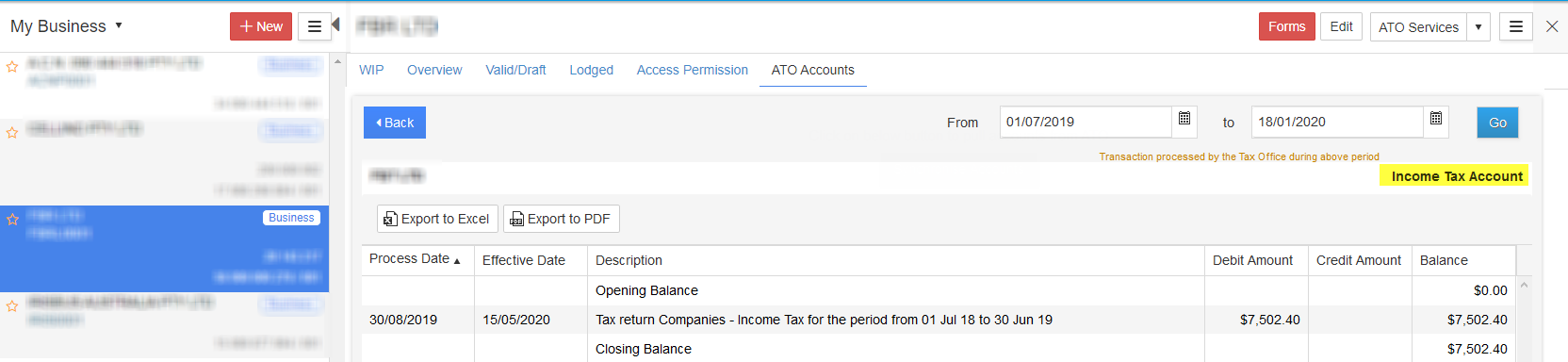
Shows the complete list of financial transactions based on the statement of account view. In this case, the transactions will be displayed for Income Tax Account as shown.
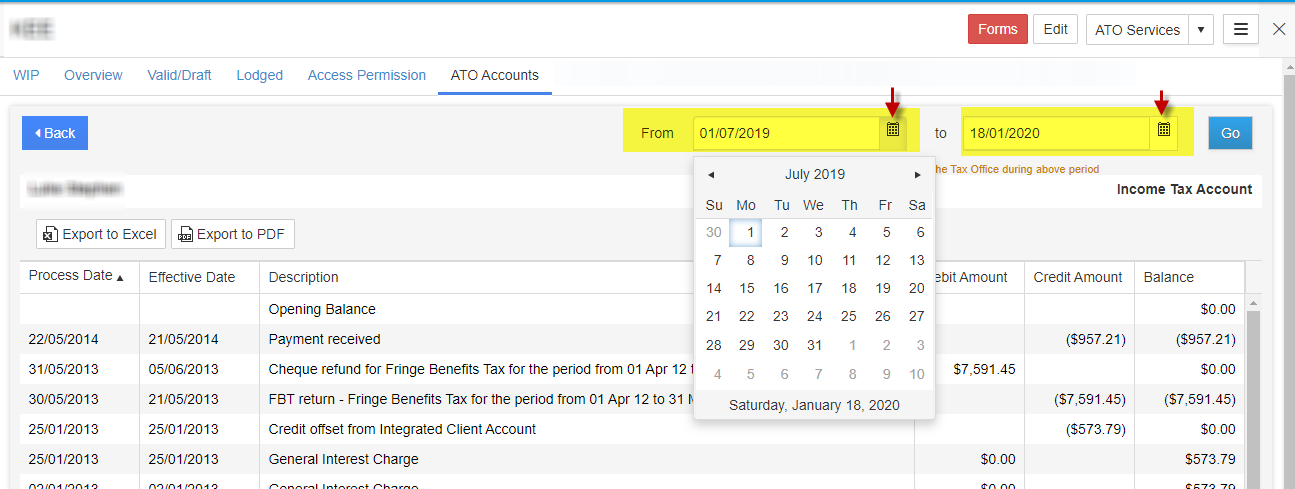
You can filter the transactions based on the period start date and end date. Select the calendar icon and select/enter the date. Click on “Go” to get the transactions for the period selected.
You can export the transaction details to an Excel or PDF with the “Export to Excel” or “Export to PDF” option.
You can navigate in between the pages to view the transactions. By default, the default items per page is set to 50 and it can be changed as per your preference.
2. Business Address:
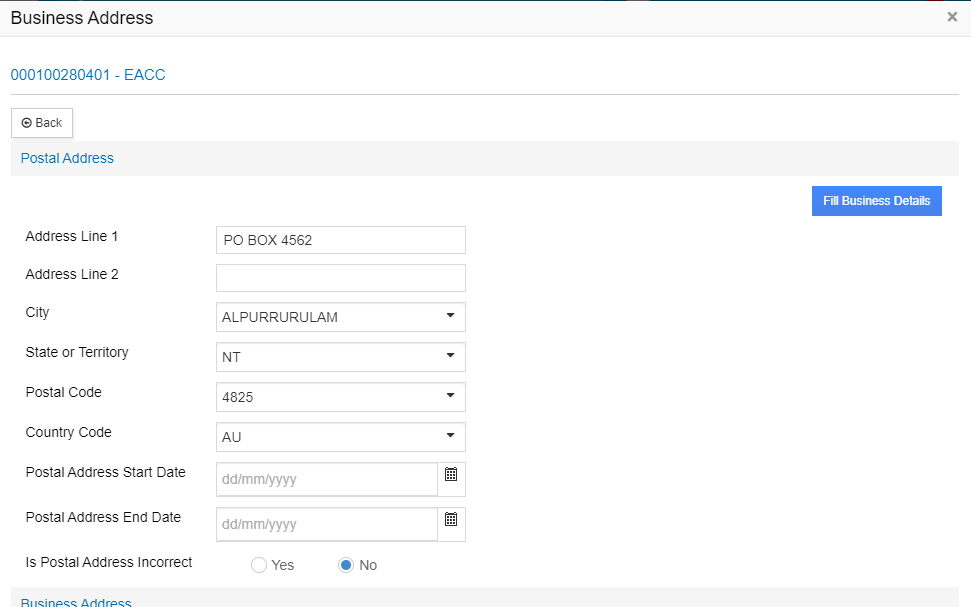
This function lets you to view current list of address,telephonic, electronic and authorised contacts at client or account level and also helps in updating changes directly to ATO.
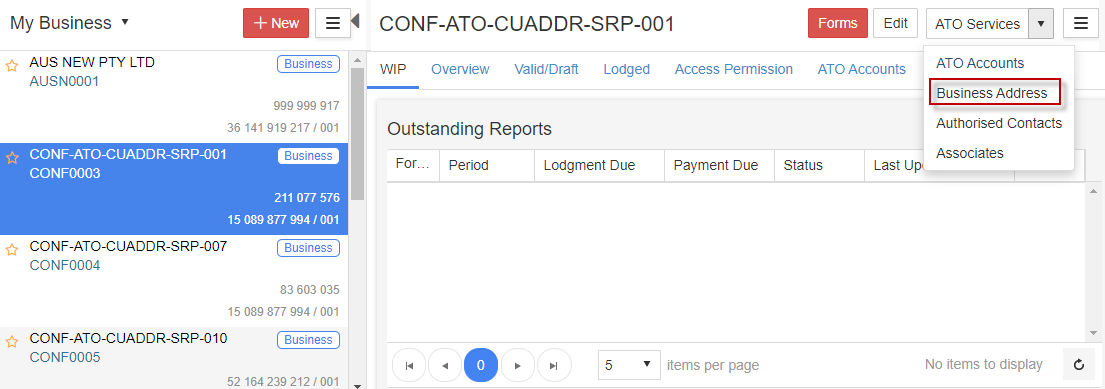
1. Go to My Business -> Select business. Under Actions, click on “Open”
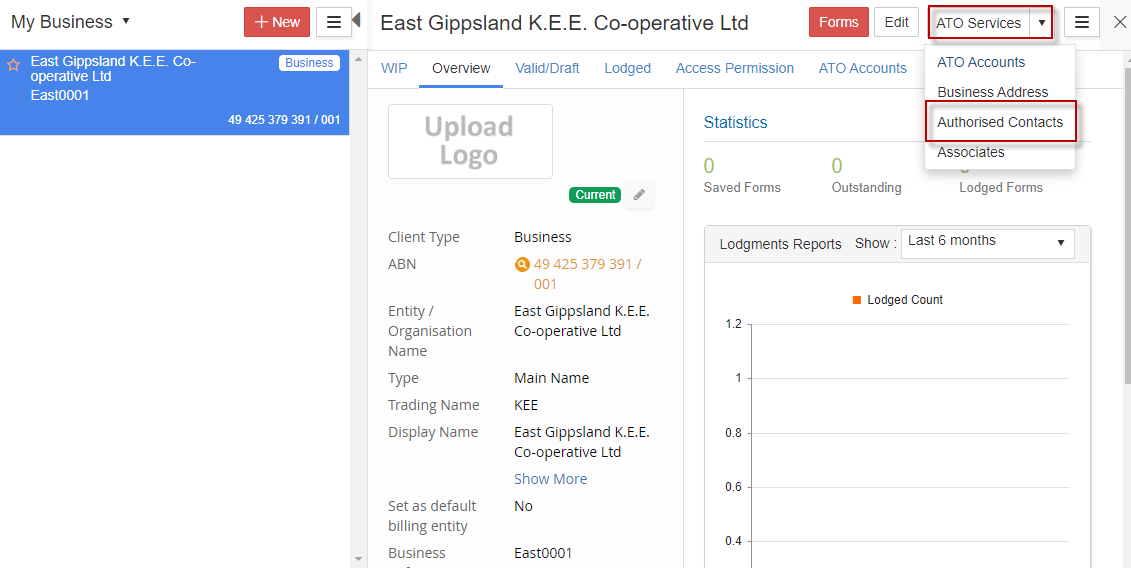
2. On the top right corner, under “ATO Services”, select “Business Address”.
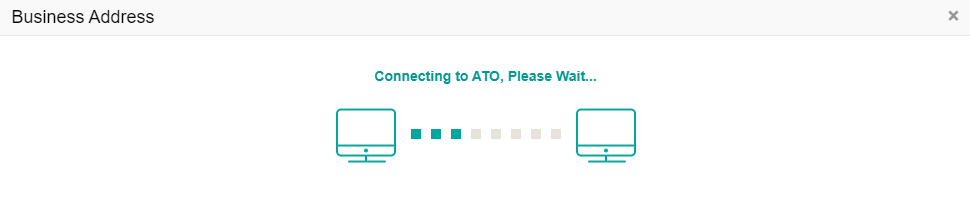
3. The system will connect to the ATO and fetch the pre-existing address details of the business.
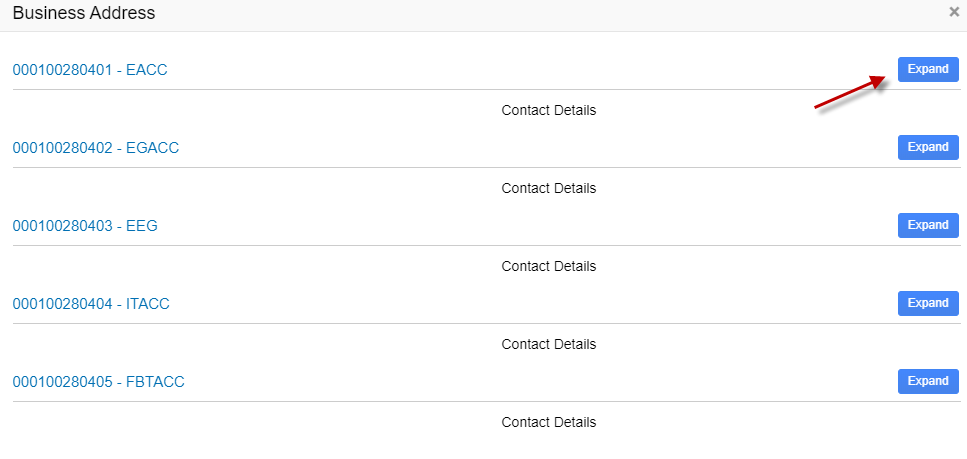
4. To edit the address details, click on “Expand”
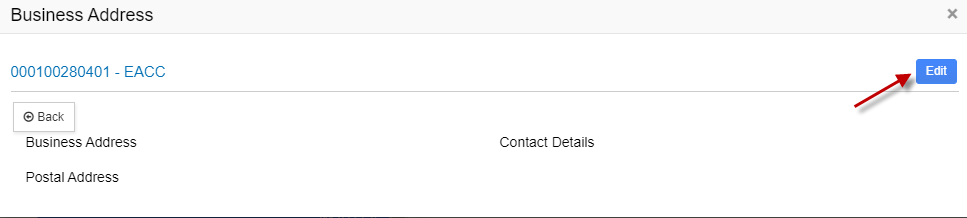
5. You can view the Address and contact details of that account. Click on “Edit” to update the details
6. For business, you can update the following:
Postal Address
Business Address
Business Hours Telephonic Details
Mobile Telephonic Details
Business After Hours Telephonic Details
Facsimile Details
Email Address Details
Electronic Service Address Alias Details
Internet Address Details
You can also make use of “Fill Business Details” to prefill your business details in the corresponding section.
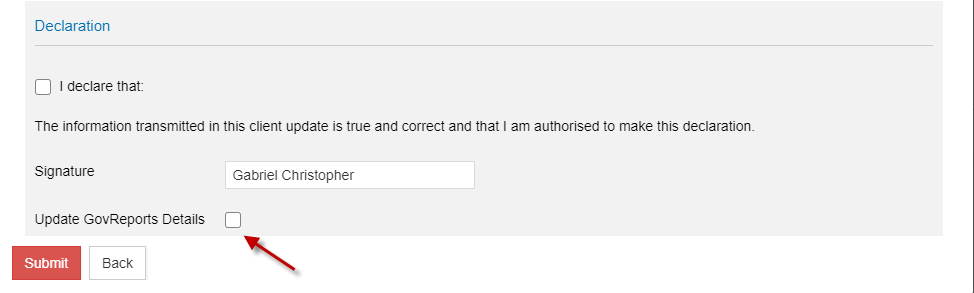
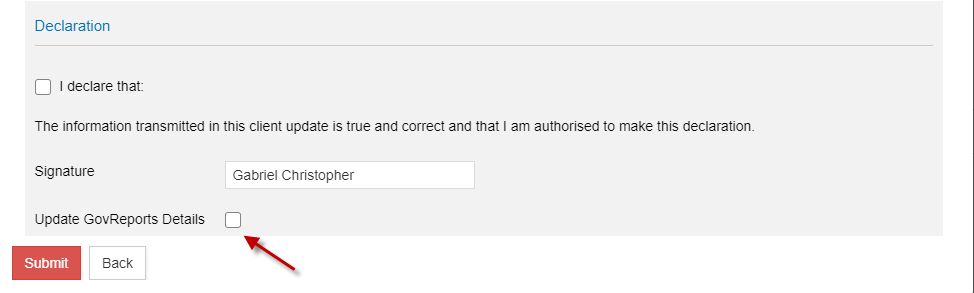
7. Make the necessary changes, tick the declaration and click on “Submit”
You can tick “Update GovReports Details” to update the changes in your GovReports account.
3. Authorised Contacts
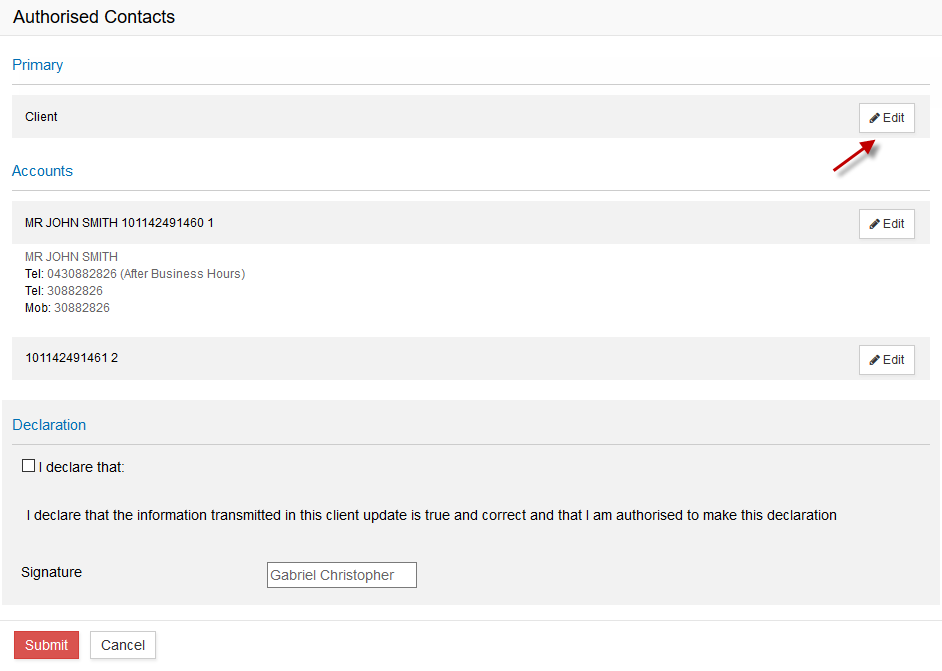
You can view authorised contacts for all of your business' accounts and roles, as well as update or add contact details relevant to your authorisation.
To view, add and update primary and account authorised contact details:
1. Go to My Business-> Select business. Under Actions, click on “Open”
2. On the top right corner, under “ATO Services”, select “Authorised Contacts”.
3. The system will connect to the ATO and fetch the authorised contact details of your business.
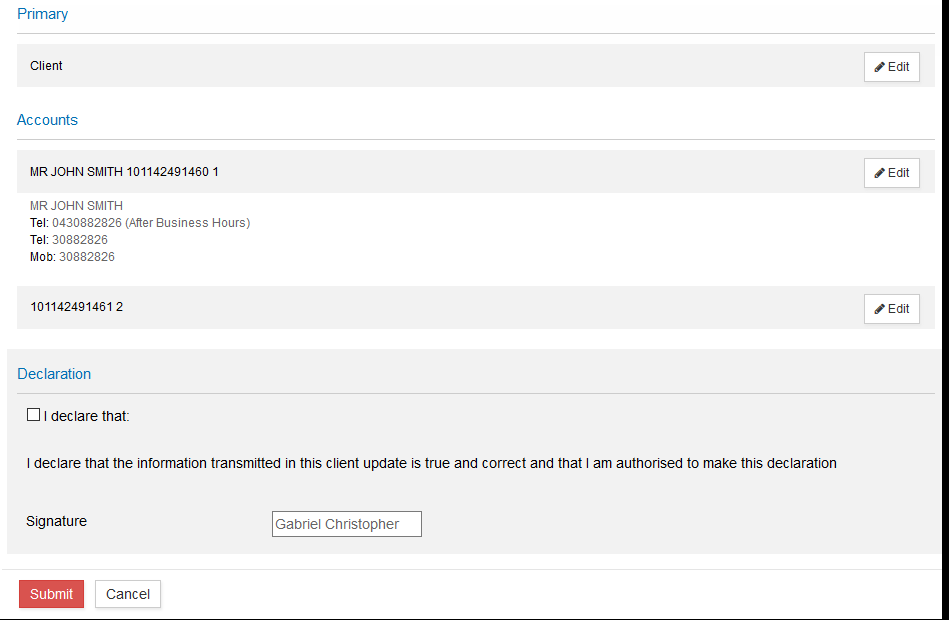
4. Click on “Edit” next to Primary details or edit next to each account you wish to edit
5. If you wish to fill the details with the business details you have added in your GovReports account, click on “Update GovReports Details”. Or you can also choose to enter the details manually.
6. Make the necessary changes, tick the declaration and click on “Submit”
4. Associates:
Associates generally include whoever is legally responsible and accountable for the actions of the entity. The associates service provides a view of the individuals or organisations that are associated with a particular entity. It will provide the ability to view a range of client relationships at the client level, where the ATO has been informed of the relationship and the associated entity has a valid record with the ATO (for example ABN and/or TFN).
In ATO systems associates are stored as a link between the two parties. The link information shows the type of relationship, and the duration (start and end dates) of the relationship between clients. It includes formal relationships (such as between a company and its Directors) and administrative relationships (such as between the Group head and members of a tax related Grouping such as IT Consolidation & GST Grouping).
To view details of your client's Associates, including the associate's name and position held:
1. Go to My Business-> Select business. Under Actions, click on “Open”.
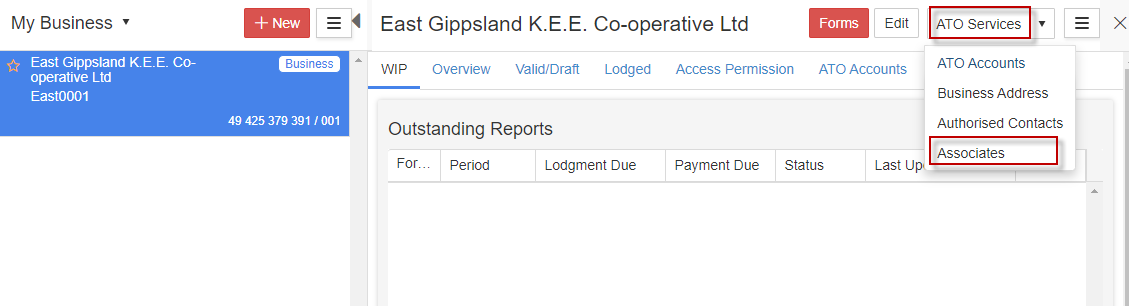
2. On the top right corner, under “ATO Services”, select “Associates”.
3. The system will connect to the ATO and fetch the Associates of the client.
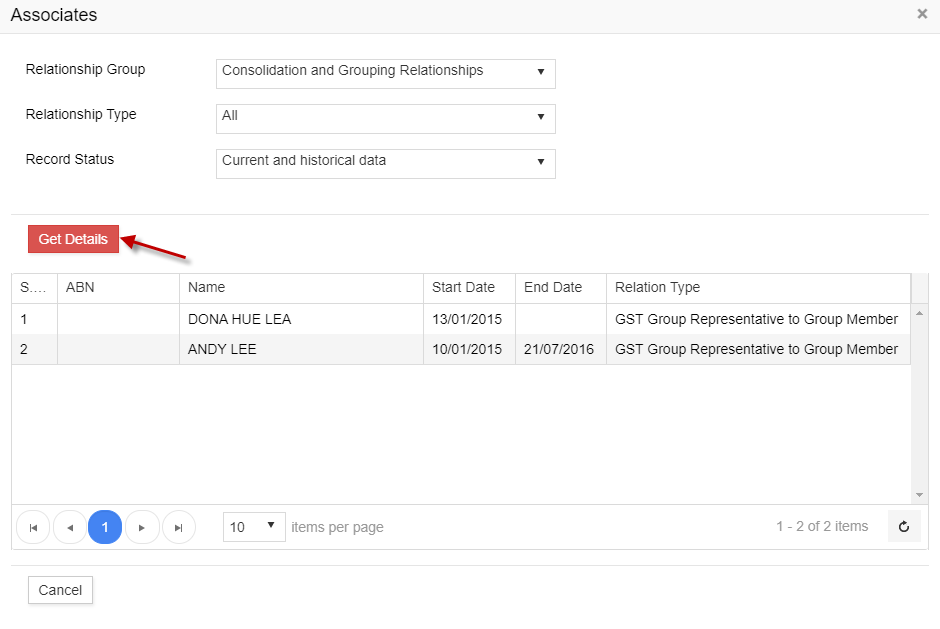
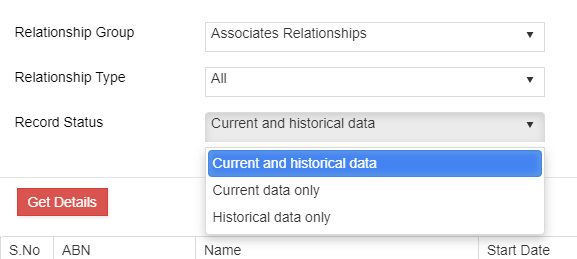
4. Select the “Associates Relationships” under Relationship Group, Relationship Type and “Current and historical data” under Record Status from the drop-down and click on “Get Details”
5. You can view the ABN, Name, Start Date, End Date and Relation type of the associates
5. Financial Institutions Details:
Financial Institution Details can be simultaneously maintained in both GovReports and ATO. The Financial Institution belonging to your business can be added and deleted in GovReports which will be updated in ATO portal directly. The details of existing financial institutions can also be edited thereby updating in the ATO portal.
1. To add, delete or edit the financial institution details, go to “My Business”.
2. You will see the business name(s). Select the business and click on “Open” under the “Actions” (3 dots)
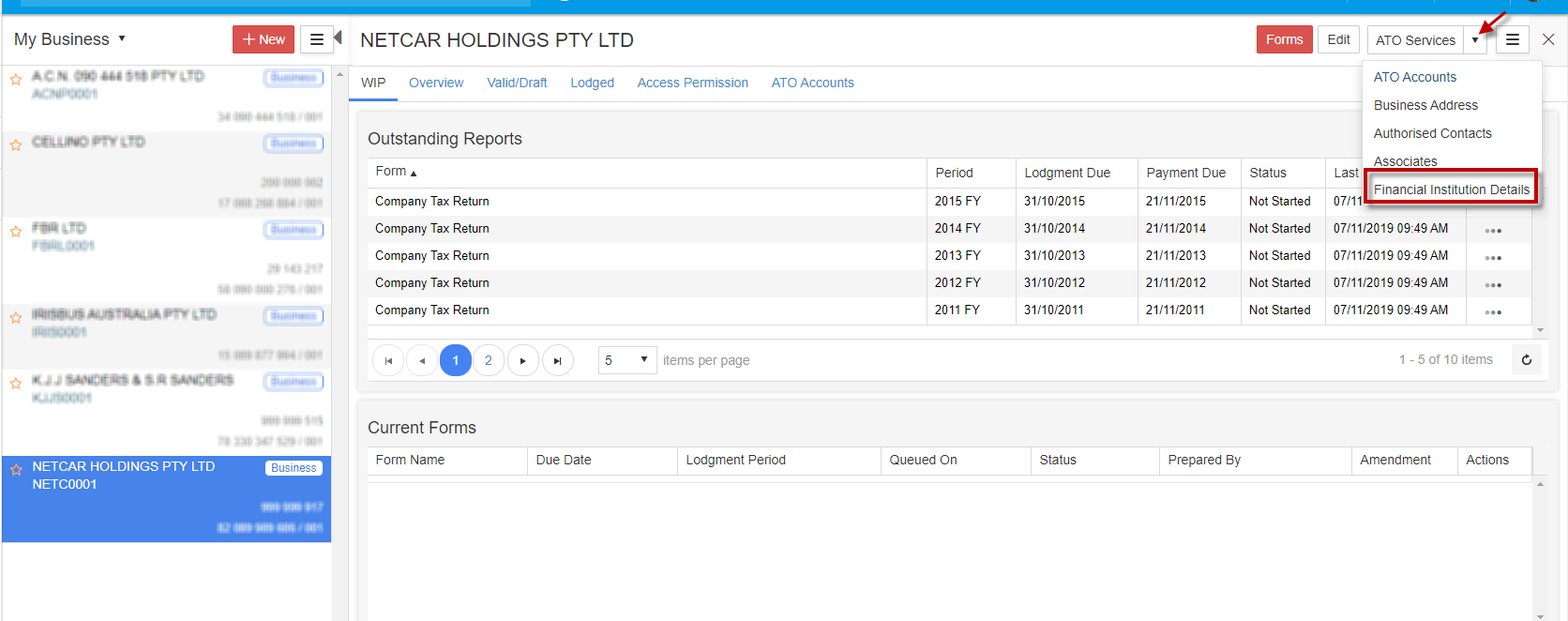
3. On the top right corner, under “ATO Services”, select “Financial Institution Details”
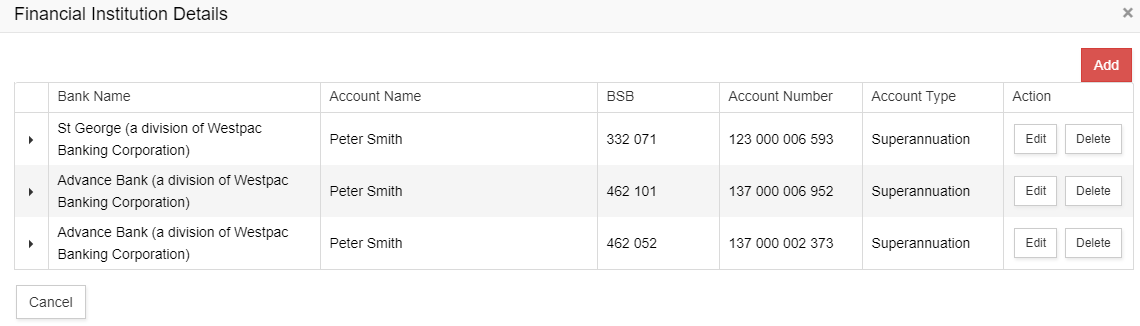
4. GovReports system will connect to ATO and fetch the details of financial institution
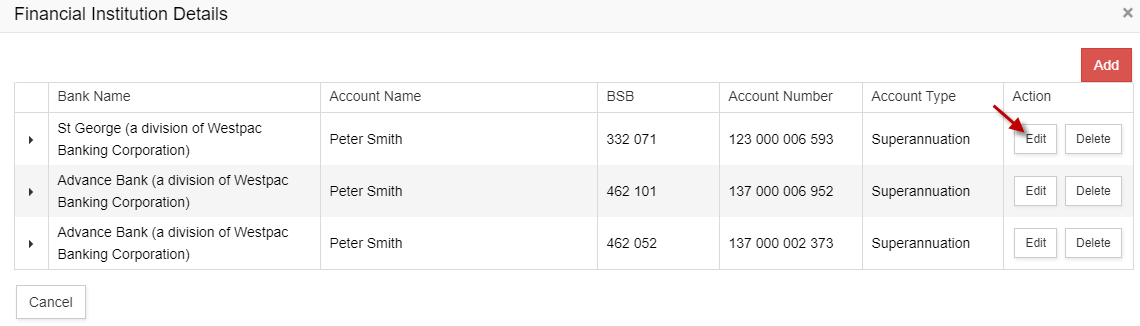
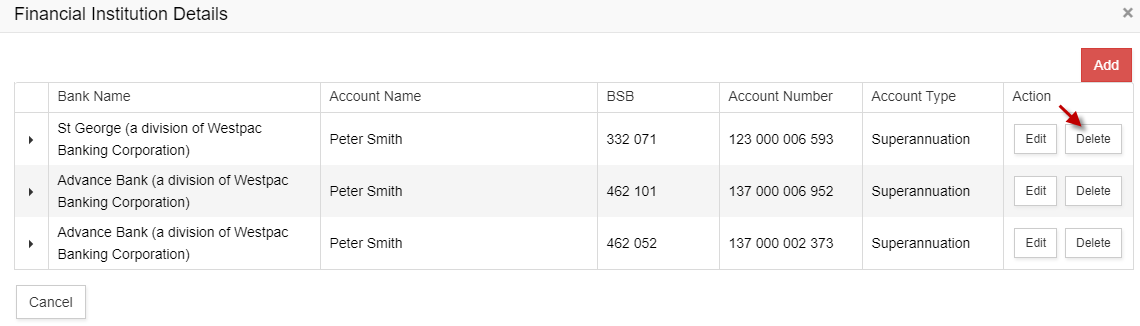
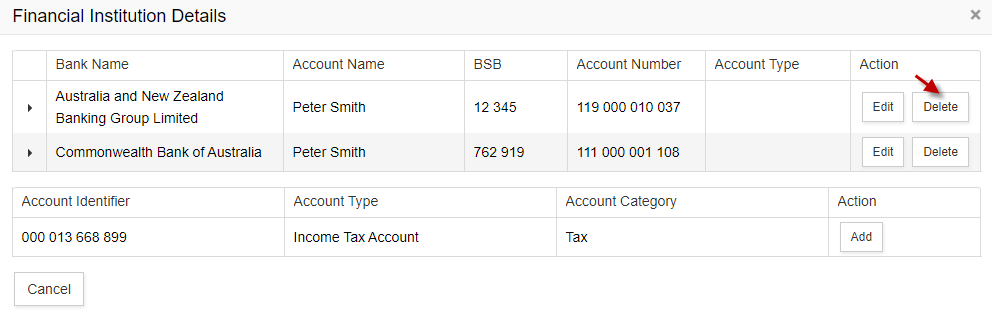
5. The Financial Institutions Details screen will display the list of institutions
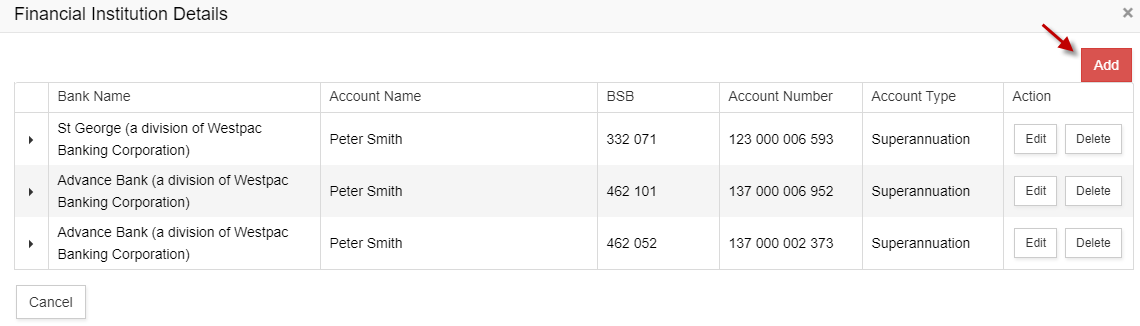
6. The GovReports system will sync the account details from ATO. You can assign the financial institution to any account synced from ATO by clicking on “Add”.
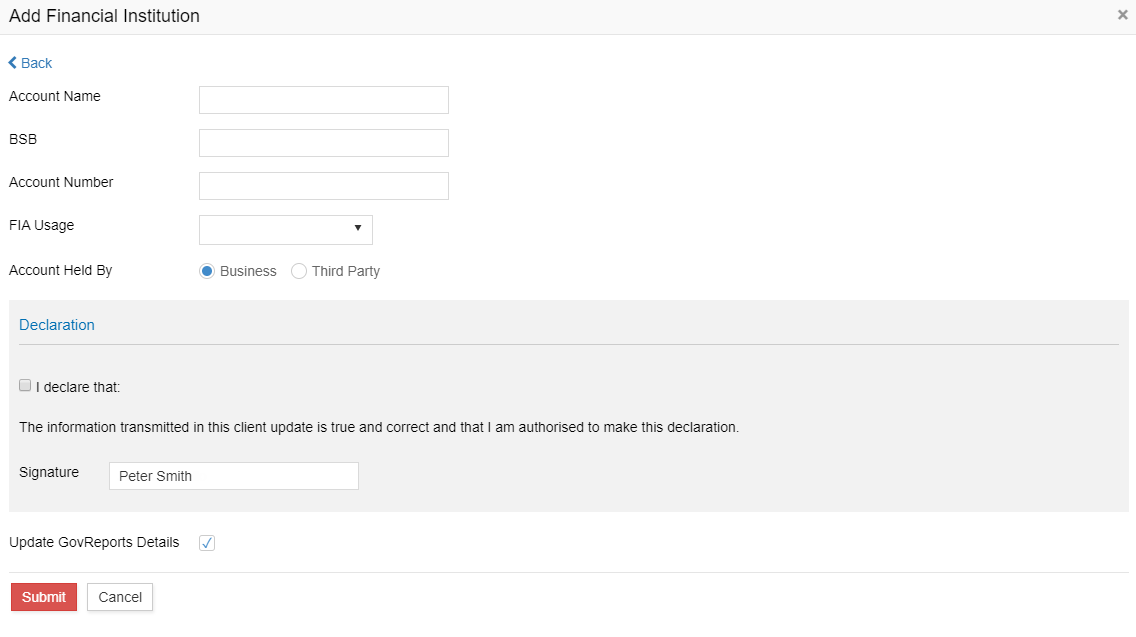
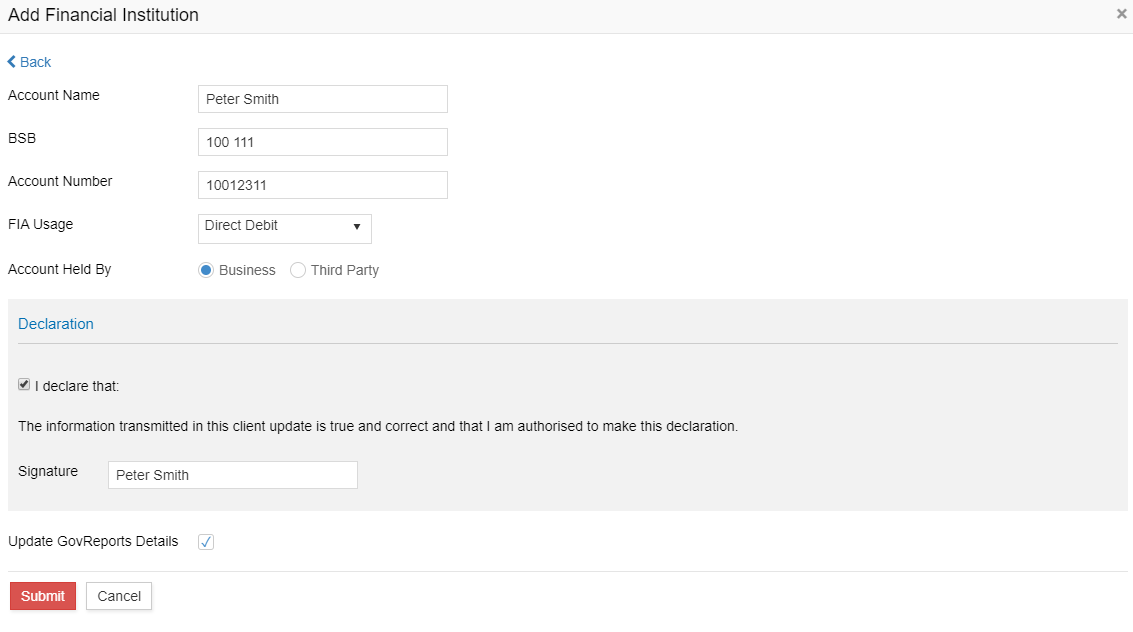
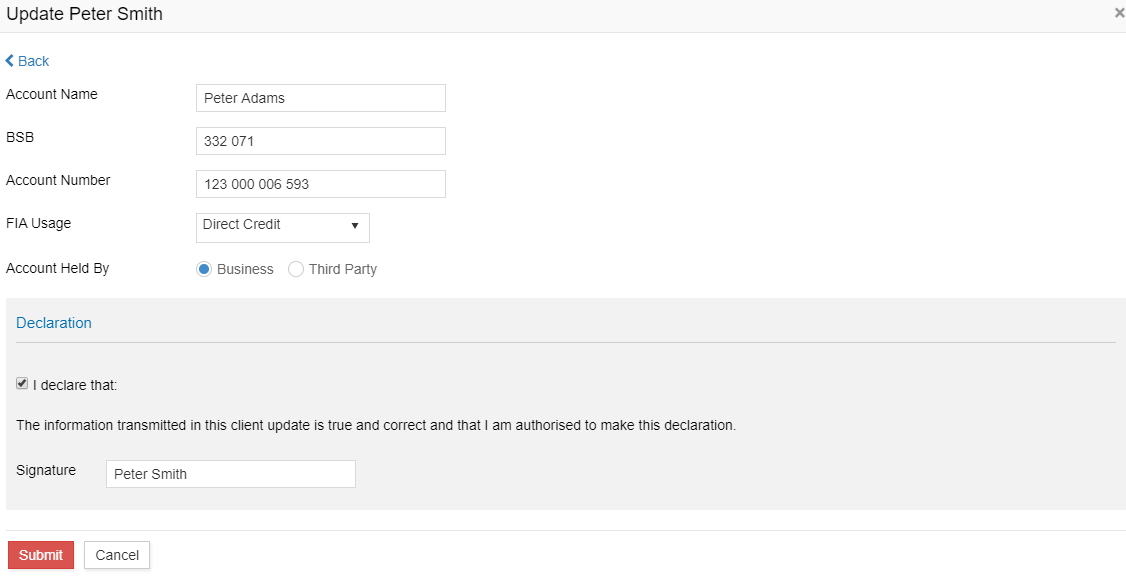
7. You must enter the Account Name, BSB and Account Number. Choose “FIA Usage” from the drop-down, select whether the account is held by the business or any third party.
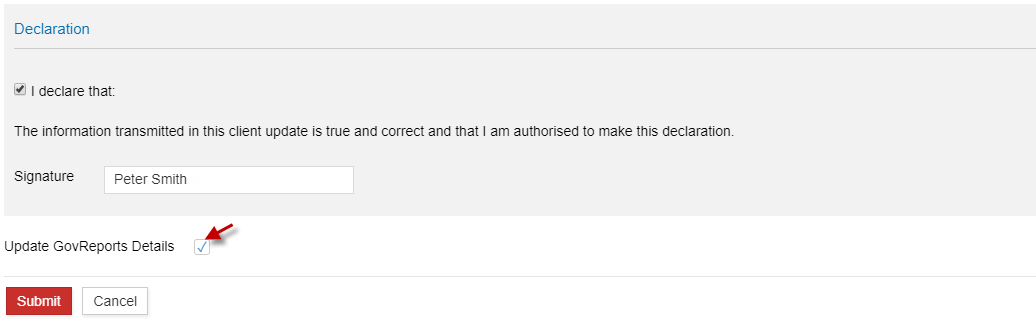
8. The “Update GovReports Details” check box will be ticked by default. It means that the details entered or edited in GovReports will be automatically updated in the ATO portal. Make a declaration and click on “Submit”
9.The details will be added in ATO portal
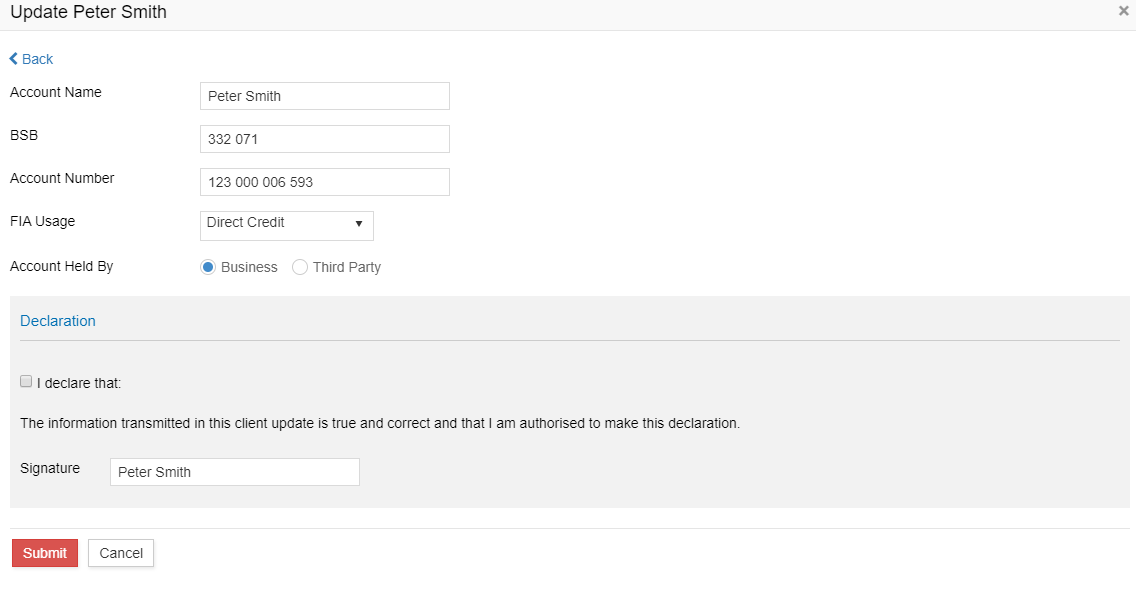
10. You can also edit your existing Financial Institution Detail by clicking on “Edit” next to it.
11. The Update window opens with an option to edit the Account name, Account Number, BSB, FIA Usage and Account Held by information.
12. After making appropriate changes, tick the declaration and click on “Submit”
13. The information edited will be updated in the ATO portal
15. The financial institution details associated with your business can also be deleted from GovReports. Click on “Delete” next to the Financial institution in the list
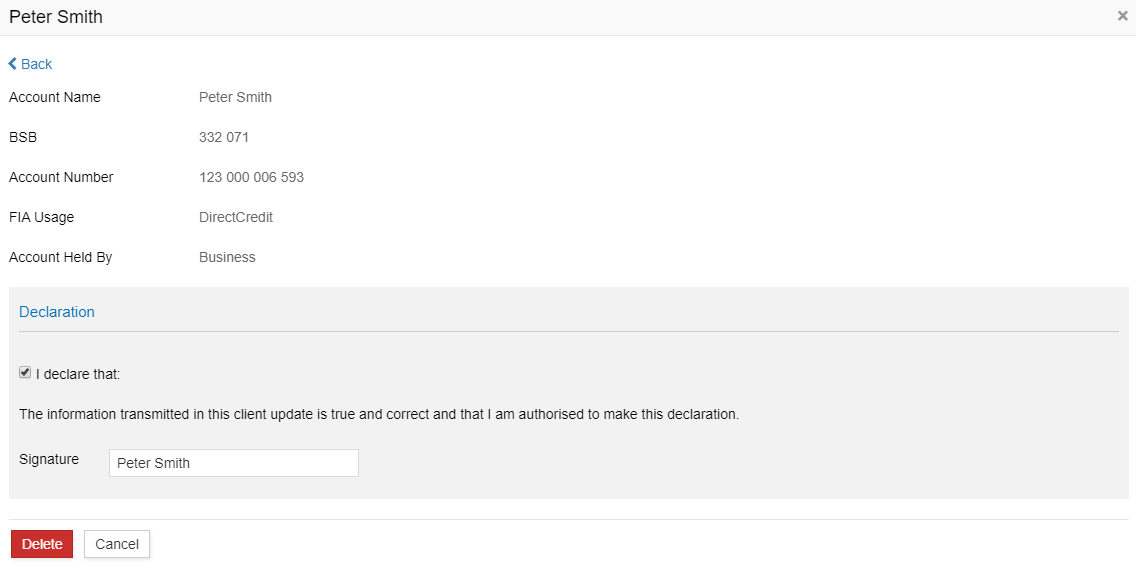
16. A window with the Account Name appears
17. Make a declaration and click on “Delete”
18. The Financial Institution detail will be deleted in GovReports and as well as ATO portal

 to populate and access the New business profile template

 action and select either Export to CSV or Export to XML.